MicroSD cards work harder than they look. In a GoPro, they sit through vibration and fast motion. In a drone, they handle sudden power loss, flight interruptions, and quick insert-remove cycles. In a dashcam, they record in a loop, often under heat and constant use. So when something goes wrong, it is usually not because the card had an easy life.
That is why microSD recovery needs a different mindset from ordinary file recovery. The goal is not to “fix” the card first. The goal is to preserve the files that are still there before the device overwrites them or the card becomes harder to read.
Why MicroSD loss is common in action devices
Action cameras and drones create several recovery risks at once. They write large video files, move quickly between power states, and depend on small cards that may be inserted through adapters or readers many times a week. A clip may disappear because the device shut down mid-recording, because the card was pulled too early, because a loop recording cycle reused space, or because the file system became confused after a bad stop.
Dashcams add another layer of pressure. They are built to keep recording, which is useful until the storage gets too full or a critical event is overwritten before anyone notices. If you need to recover video from a microSD card, time matters more than cosmetics. Every new recording session can remove more of the old one.
What to do immediately after the loss
Stop the device as soon as you notice a problem. Do not keep running test recordings. Do not format the card because the screen asks you to. Do not copy random files onto the same microSD card in the hope that the device will sort itself out. All these actions can turn a recoverable problem into a permanent one.
Check the card on a computer, not in the device
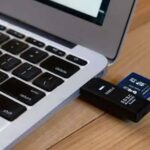
The next step is a proper computer connection. Use a reliable card reader and test the microSD card on a Windows or Mac machine. If you have a second reader, try that too. A bad adapter can make a healthy card look unreadable, and you do not want to misdiagnose the card before recovery has even begun.
What you are looking for is simple: can the computer detect the card well enough to scan it? You do not need the files to appear in folders yet. You only need enough access for recovery software to work. If the card is not detected anywhere, take that seriously. It may still be possible to recover data, but physical damage or controller failure can move the problem beyond standard software recovery. In that case, stop forcing the card through more readers and consider a more specialized recovery path.
Where Wondershare Recoverit fits
For creators who work on desktops, Wondershare Recoverit is a practical next step. It is a data recovery software for Windows and Mac. Its workflow is built for cards, cameras, and computers rather than mobile storage.
Recoverit’s microSD and SD card recovery feature lets you scan the card, preview what the software finds, and restore selected files to another drive. That is a better fit for creator workflows than trying to repair the device first. If the lost footage is the kind you cannot re-shoot, the preview stage is useful because it gives you a quick sense of whether the clip is still intact before you commit to the full restore.
The newer AI-assisted file discovery is especially helpful for action-device users. Many creators remember the shot, the location, or the device more clearly than the exact filename.
A simple recovery workflow
1. Connect the microSD card to a computer with a stable reader.
2. Open Wondershare Recoverit and choose the card recovery option.
3. Select the microSD card that contains the missing media.
4. Run the scan and let the software inspect deleted and lost files.
5. Filter by video type or preview likely clips.
6. Recover the files to a different drive.
That last point is especially important for microSD cards because they are often reused quickly. The recovered clips need a safe landing spot before you touch the card again. A desktop SSD or internal drive gives you that buffer.
If the recovered video appears partially broken, check whether the file is still playable in your editor before you assume it is unusable. Action footage sometimes comes back with odd metadata but clean video content. That is why preview and actual playback both matter.
Device-specific tips for creators
GoPro users should avoid removing the card immediately after a strange power event. Let the camera settle first, then move the card to the computer. Drone users should watch for interrupted file finalization after a battery drop or a sudden landing. Dashcam users should be careful with loop recording settings, because a few extra minutes of driving can overwrite the exact clip they were trying to preserve.
If your workflow runs on Mac, build the recovery habit into your edit process. Importing footage from microSD cards into a project folder on a Mac is normal, but recovery is safest when the original card is treated like evidence: read it, scan it, recover from it, and only then reuse it.
Conclusion
MicroSD recovery is really a speed game. The earlier you stop, the more likely it is that the file system still has enough structure left to pull the clip back. That is why the safest response is calm, not clever: preserve the card, scan it on a computer, and recover the files before the device has a chance to replace them.